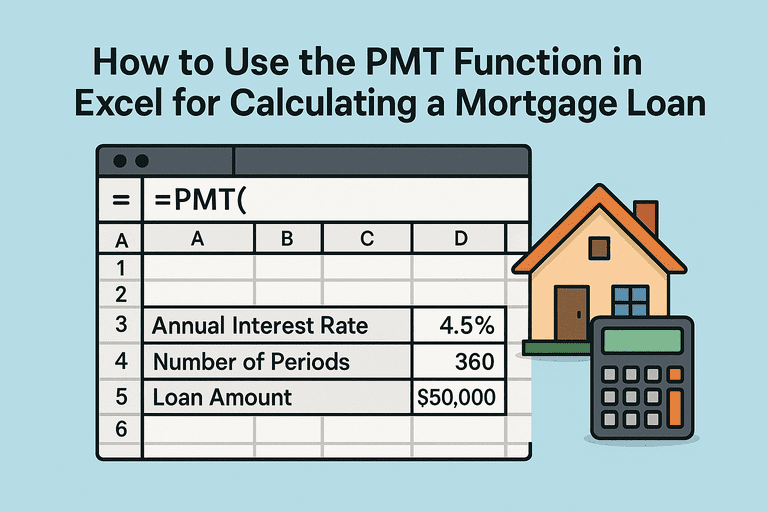
If you want to calculate a mortgage loan quickly in Excel, the PMT function is one of the most powerful tools available. Instead of entering long formulas manually, PMT allows you to generate monthly payments instantly with just three inputs. For the full step-by-step foundation of mortgage math, see our step-by-step mortgage loan calculation guide this article zooms in on Excel’s PMT function specifically.
1. What Is the PMT Function?
The PMT function is a built-in Excel financial formula used to calculate the payment for a loan based on constant interest rates and a fixed schedule of payments.
Syntax:
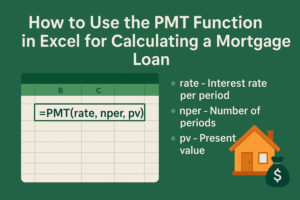
=PMT(rate, nper, pv, [fv], [type])
Where:
rate = interest rate per period (annual rate ÷ 12 for monthly)
nper = number of total payments (years × 12 for monthly)
pv = present value, or loan amount (entered as a negative number in Excel)
fv (optional) = future value, usually 0 for mortgages
type (optional) = timing of payment (0 = end of period, 1 = beginning)
2. Example: Standard 30-Year Mortgage
Let’s calculate a $250,000 loan at 6% interest for 30 years.
=PMT(0.06/12, 360, -250000)
Rate = 0.06 ÷ 12 = 0.005
nper = 30 × 12 = 360
pv = -250000
Result: ≈ $1,498.88 per month (principal + interest only).
3. Adding Taxes and Insurance
Since PMT only calculates principal and interest, you’ll need to manually add property taxes, insurance, and PMI for a true monthly payment.
Example:
Base payment = $1,498.88
Taxes = $200
Insurance = $100
PMI = $75
Total Monthly Payment = $1,873.88
4. Using PMT for Different Scenarios
You can adjust the PMT inputs to compare scenarios:
15-Year Loan:
= $2,042/month (higher payment, less total interest).
Extra Payments: Add additional amounts to your PMT output to model principal reduction.
Biweekly Payments: Adjust nper to 26 × years, and divide rate accordingly.
5. Common Mistakes to Avoid
Forgetting to divide the annual interest rate by 12.
Forgetting to use the loan amount as a negative value (Excel returns positive payments if you skip this).
Using gross loan amount instead of subtracting your down payment.
6. Why Use PMT Instead of Manual Formulas?
Faster: No need to retype long formulas.
Flexible: Easily compare different loan terms.
Visual: Pair with Excel’s tables and charts for clear amortization schedules.
Accurate: Built-in financial function reduces human error.
Conclusion
The PMT function makes mortgage calculations in Excel fast, accurate, and customizable. By adjusting the loan amount, term, and interest rate, you can instantly compare different scenarios and see how they affect your monthly payment.